
How is this Different from IP GeoLocation.
- Other tools and services offer IP Geolocation which is NOT accurate at all and does not give location of the target instead it is the approximate location of the ISP.
- Seeker uses HTML API and gets Location Permission and then grabs Longitude and Latitude using GPS Hardware which is present in the device, so Seeker works best with Smartphones, if the GPS Hardware is not present, such as on a Laptop, Seeker fallbacks to IP Geolocation or it will look for Cached Coordinates.
- Generally if a user accepts location permsission, Accuracy of the information recieved is accurate to approximately 30 meters.
- Accuracy depends on multiple factors which you may or may not control such as :
- Device – Won’t work on laptops or phones which have broken GPS
- Browser – Some browsers block javascripts
- GPS Calibration – If GPS is not calibrated you may get inaccurate results and this is very common.
Available Templates :
- NearYou
- Google Drive (Suggested by @Akaal_no_one)
- WhatsApp (Suggested by @Dazmed707)
- Telegram
- Zoom (Made by @a7maadf)
- Google reCAPTCHA (Made by @MrEgyptian)
Tested on :
- Kali Linux
- BlackArch Linux
- Ubuntu
- Kali Nethunter
- Termux
- Parrot OS
- OSX – Monterey v.12.0.1
Installation : Kali Linux / Arch Linux / Ubuntu / Parrot OS / Termux.
- git clone https://github.com/thewhiteh4t/seeker.git
- cd seeker/
- chmod +x install.sh
- ./install.sh
Installation : BlackArch Linux
- sudo pacman -S seeker
Installation : Docker
- docker pull thewhiteh4t/seeker
Installation : OSX
- git clone https://github.com/thewhiteh4t/seeker.git
- cd seeker/
- python3 seeker.py
Use :
python3 seeker.py -h
usage: seeker.py [-h] [-k KML] [-p PORT] [-u] [-v]
options:
-h, –help show this help message and exit
-k KML, –kml KML KML filename
-p PORT, –port PORT Web server port [ Default : 8080 ]
-u, –update Check for updates
-v, –version Prints version
##################
# Usage Examples #
##################
# Step 1 : In first terminal
$ python3 seeker.py
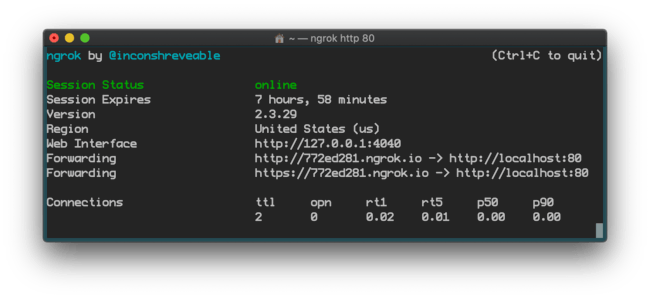
# Step 2 : In second terminal start a tunnel service such as ngrok
$ ./ngrok http 8080
###########
# Options #
###########
# Ouput KML File for Google Earth
$ python3 seeker.py -k <filename>
# Use Custom Port
$ python3 seeker.py -p 1337
$ ./ngrok http 1337
################
# Docker Usage #
################
# Step 1
$ docker network create ngroknet
# Step 2
$ docker run –rm -it –net ngroknet –name seeker thewhiteh4t/seeker
# Step 3
$ docker run –rm -it –net ngroknet –name ngrok wernight/ngrok ngrok http seeker:8080
Local tunnels :
- ssh -R 80:localhost:8080 nokey@localhost.run
Ngrok installation :

- pkg install zip wget -y
- wget https://bin.equinox.io/c/4VmDzA7iaHb/ngrok-stable-linux-arm.zip
- unzip ngrok-stable-linux-arm.zip
- chmod +x ngrok
- ./ngrok authtoken YOUR_AUTH_TOKEN_HERE
- ngrok http 8080
𝙴𝚝𝚑𝚒𝚌𝚊𝚕 𝙷𝚊𝚌𝚔𝚒𝚗𝚐 𝚏𝚞𝚕𝚕 𝚌𝚘𝚞𝚛𝚜𝚎 – paid💰
For contact📞
 Cyber tech zone